Connect AI apps
Add Githome to Claude, Claude Code, Codex or any MCP app with one URL and a browser sign-in. Pick your app and follow its guide.
Githome works with AI apps through its MCP server. Every app connects to the same address:
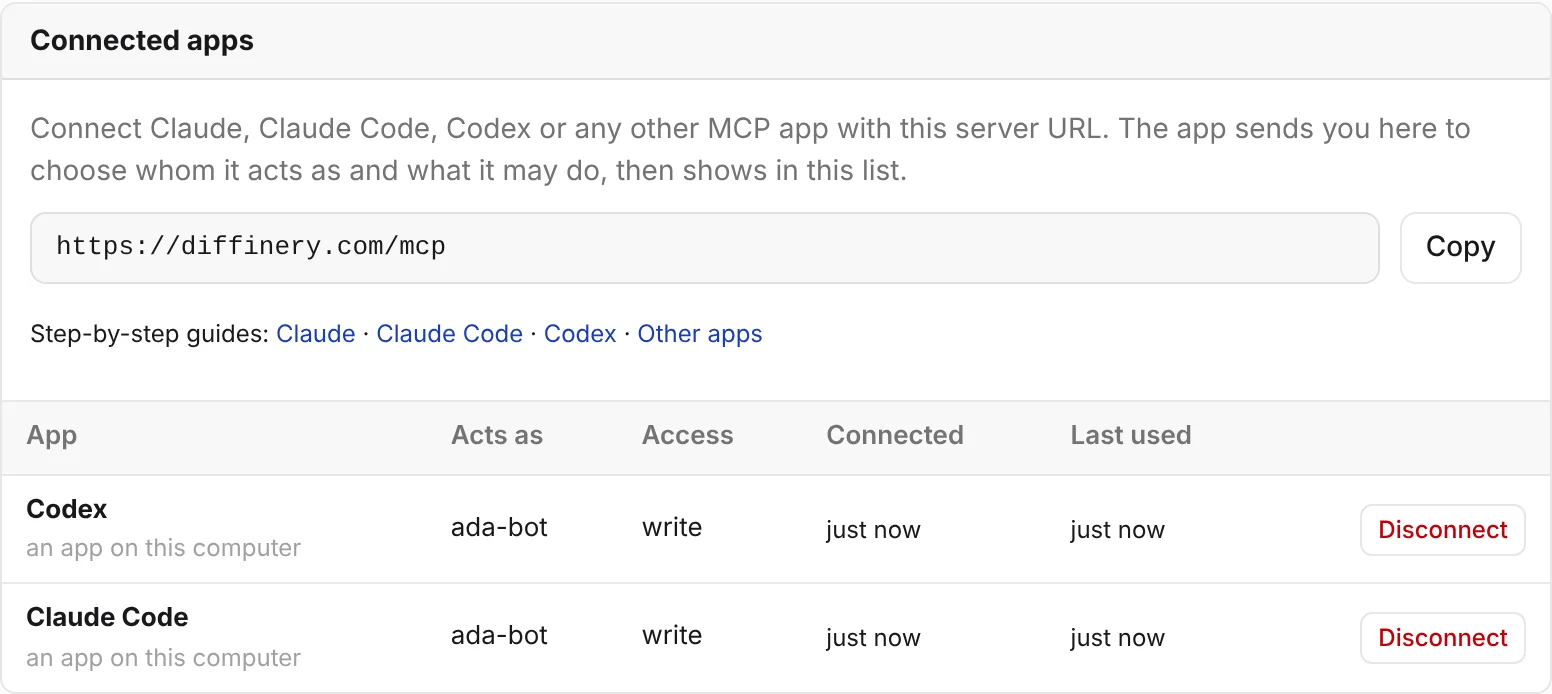
https://git.pkgforge.dev/mcpThere is no token to copy. The app sends you to Githome in your browser, you choose whom it acts as and what it may do, and it's connected. You can see and disconnect every app under Settings → Access tokens → Connected apps, which also shows this URL with a copy button.
Pick your app
| You use | What you do | Guide |
|---|---|---|
| Claude on claude.ai, Claude Desktop or the Claude mobile apps | Add a custom connector with the URL, then approve it on Githome. | Claude |
| Claude Code | Run claude mcp add --scope user --transport http githome https://git.pkgforge.dev/mcp, then sign in from /mcp. | Claude Code |
| Codex (OpenAI's coding agent) | Run codex mcp add githome --url https://git.pkgforge.dev/mcp, then codex mcp login githome. | Codex |
| Cursor, VS Code or another MCP app | Add the URL as a remote (HTTP) MCP server. | Other apps |
| Claude Code cloud environments and other agent sandboxes | Paste three boxes from the repository's Settings → Agent setup. | Cloud agent environments |
| CI, scripts (no browser) | Send an agent's token instead of signing in. | Headless use |
What a connected app can do
Once connected, the app works with Githome the way you would, within the access you gave it:
- Read code, branches and commits, compare branches, and commit files to a new branch without git.
- Open pull requests with an intent, comment, review, merge, or turn on auto-merge.
- Follow CI where a deployment runs it: list workflow runs, read the log of a failing job, and re-run or cancel runs. The forge CI of git.pkgforge.dev is dormant, so no workflow runs there now.
- File and update issues, and draft and publish releases.
- Search and read these docs.
The MCP tool reference lists every tool. In a terminal, Claude Code and Codex can also use git and the githome CLI.
You stay in control
- Act as an agent. On the consent page you pick whether the app acts as you or as one of your agents. An agent is the safer choice for an AI app: its commits and comments are marked as the agent's, it can't push to protected or default branches, and its pull requests need a person's approval unless a branch rule says otherwise.
- Choose the access. Read, Write or Admin. Write is enough for pull requests, reviews and issues. Admin is never preselected.
- Disconnect any time. Settings → Access tokens → Connected apps lists every app with whom it acts as, its access and when it was last used. Disconnect ends it at once.
How the sign-in works, and what each part of the consent page means, is in How sign-in works.
For AI agents reading this page
If you are an agent setting yourself up:
- Running in a terminal with a person nearby: ask them to add the server for your app (Claude Code, Codex) and approve the sign-in. Don't try to complete a browser sign-in yourself.
- Running in a cloud sandbox for one repository:
githome setup --repo <owner>/<repo>sets up git and gh and checks them; the person sets up the sandbox from the repository's Settings → Agent setup (Cloud agent environments). - Running headless with
GITHOME_TOKENset: add the server with anAuthorization: Bearer ${GITHOME_TOKEN}header, as in Headless use.githome mcp-configprints the snippet. - Either way,
githome auth setup-gitlets git push with the same sign-in, andgithome auth setup-ghmakesghwork against git.pkgforge.dev (GitHub CLI).